
Trades aren't showing up
Work through these in order:
- Check the addon is running and enabled. Open the addon's control panel in NinjaTrader (Control Center → New → Frequency Tracker Exporter) and confirm the status says "Watching for trades," not "Paused."
- Check the specific account is enabled. The addon lets you turn export on/off per account — scroll down in the control panel and make sure the account you traded on shows as enabled (green).
- Check your license is valid. If the license status shows anything other than "Valid," exporting may be blocked. See Getting your license code & machine binding.
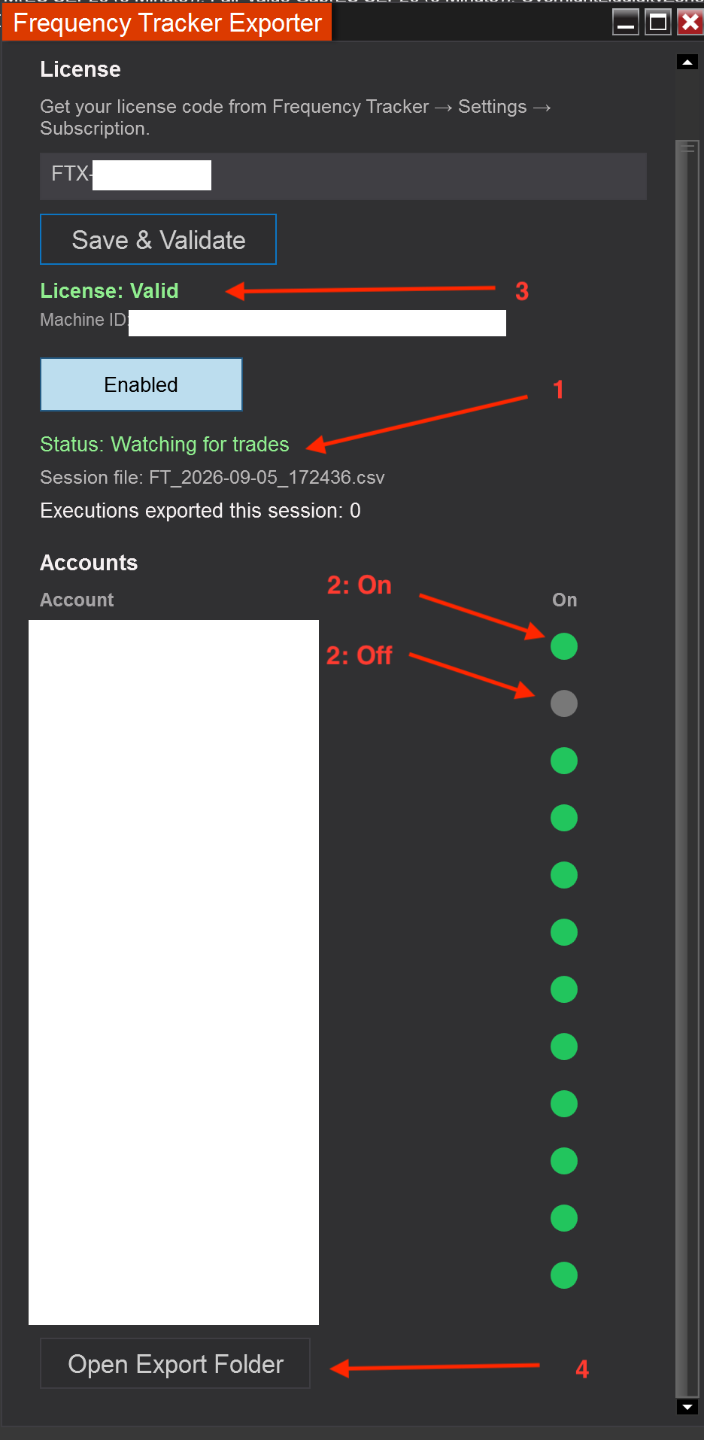
Numbers in the image correspond to the steps above.
- Check Frequency Tracker's Auto Import settings. In the app, go to Settings → Auto Import and confirm auto-import is turned on and pointed at the correct folder.
- Try the Recover Missed Trades tool. Still under Settings → Auto Import, this tool scans for orphaned/unmatched executions and proposes groupings for you to review — useful if a trade came through partially but didn't get fully matched into a complete round trip. Nothing is applied automatically; you choose what to accept.
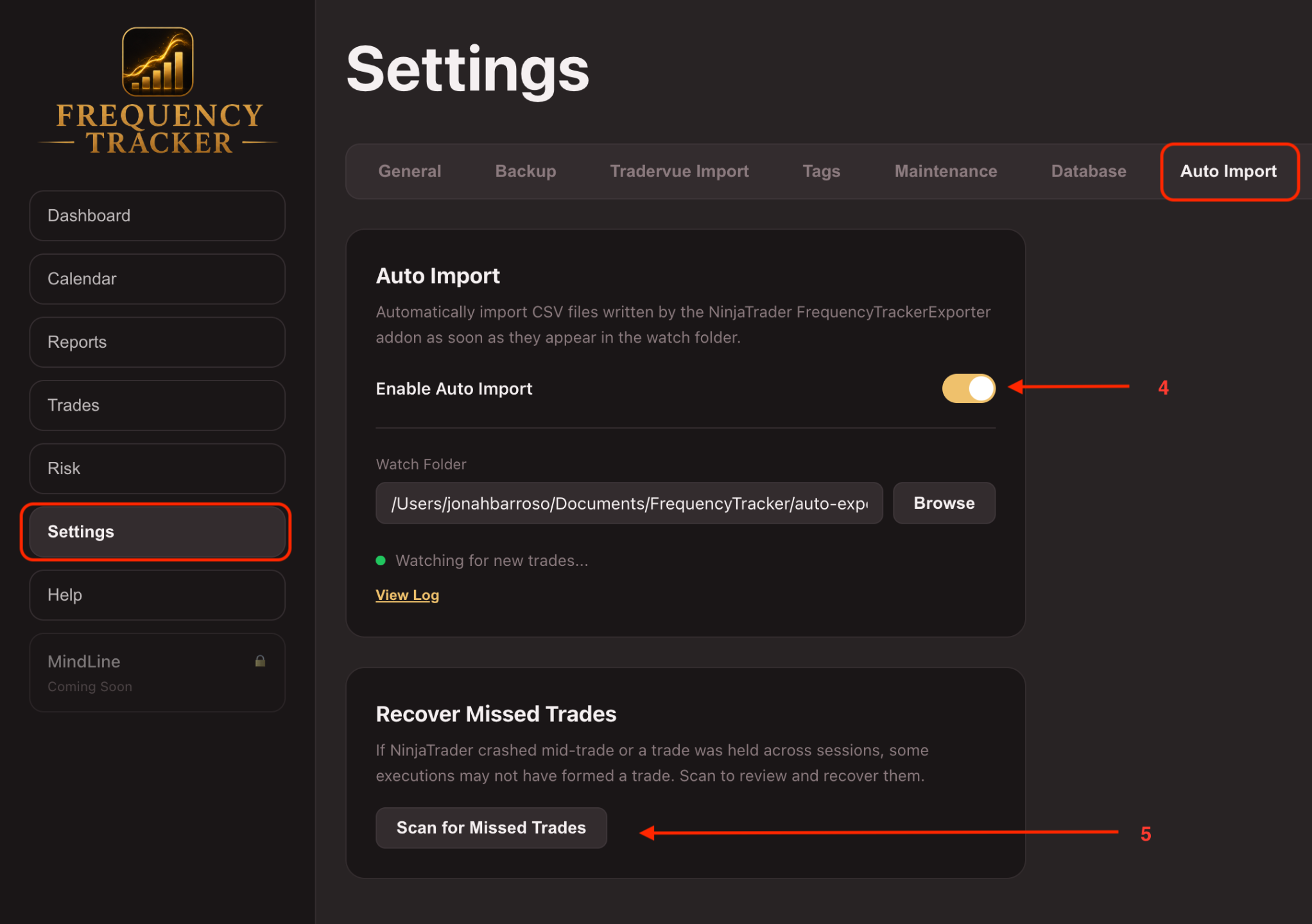
Numbers in the image correspond to the steps above.
If trades still aren't appearing after all of this, email [email protected] or reach out in the community with your NinjaTrader export folder location and roughly when the missing trade happened.
Seeing duplicate trades
Frequency Tracker automatically detects and skips duplicate executions during import, so duplicates are uncommon. If you do see what looks like the same trade twice:
- Check whether it's actually two different accounts that copied the same trade (this is expected — Frequency Tracker can show trades individually per account or grouped together, depending on your view).
- If it's genuinely the same account and same trade showing twice, email [email protected] — this may point to something worth investigating on our end.
Old export files piling up
You don't need to manage these yourself — Frequency Tracker automatically archives export files older than about a week into a separate folder, so your main export folder stays small over time. Archived files aren't deleted, just moved, so nothing is lost.
Where to go next