Getting your code
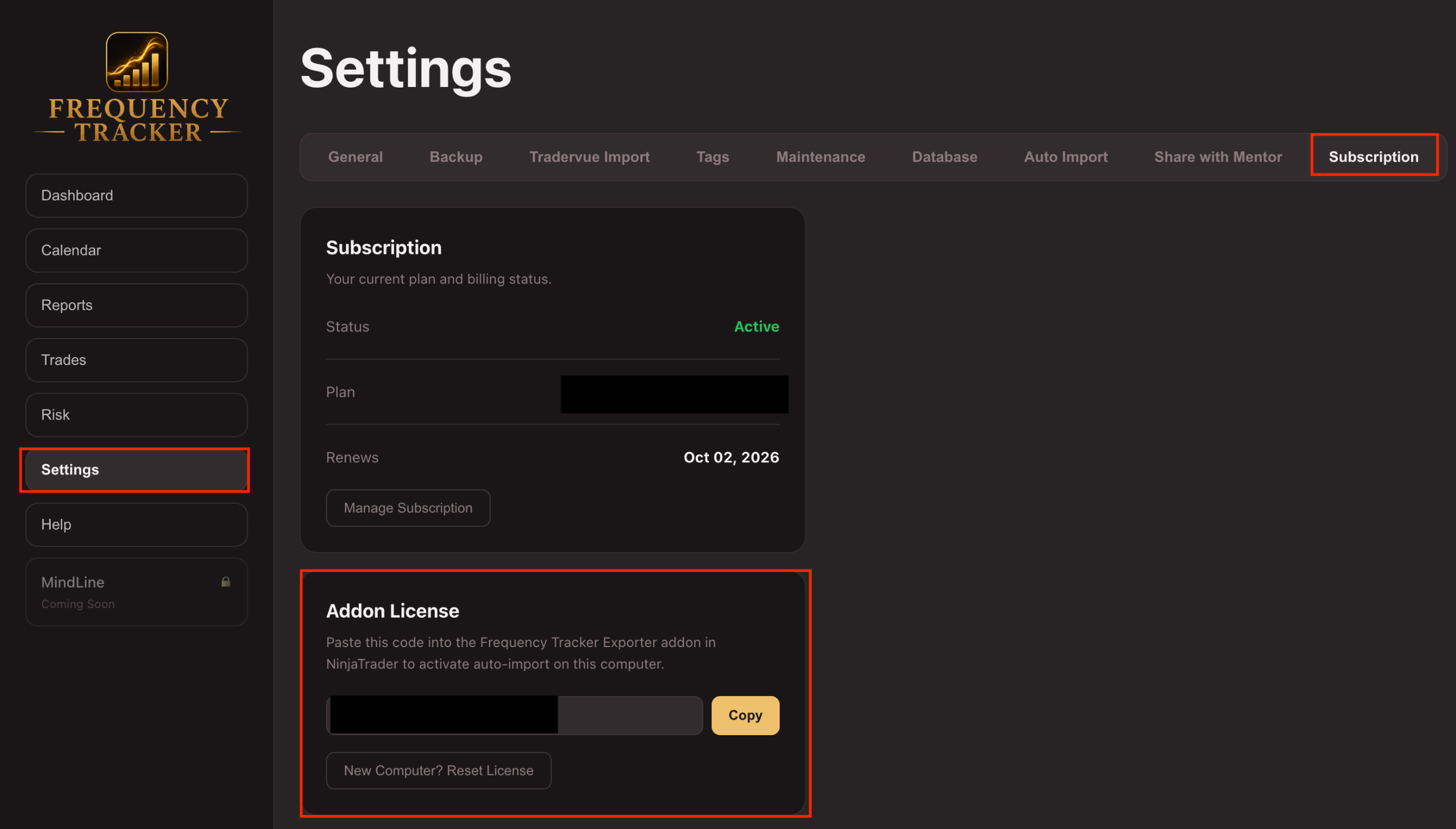
- Open Frequency Tracker (the desktop app).
- Go to Settings → Subscription.
- Find the Addon License section — your code will already be there (something like
FTX-XXXXXXX), generated automatically the first time you view this page. - Click Copy.
Entering it in the addon
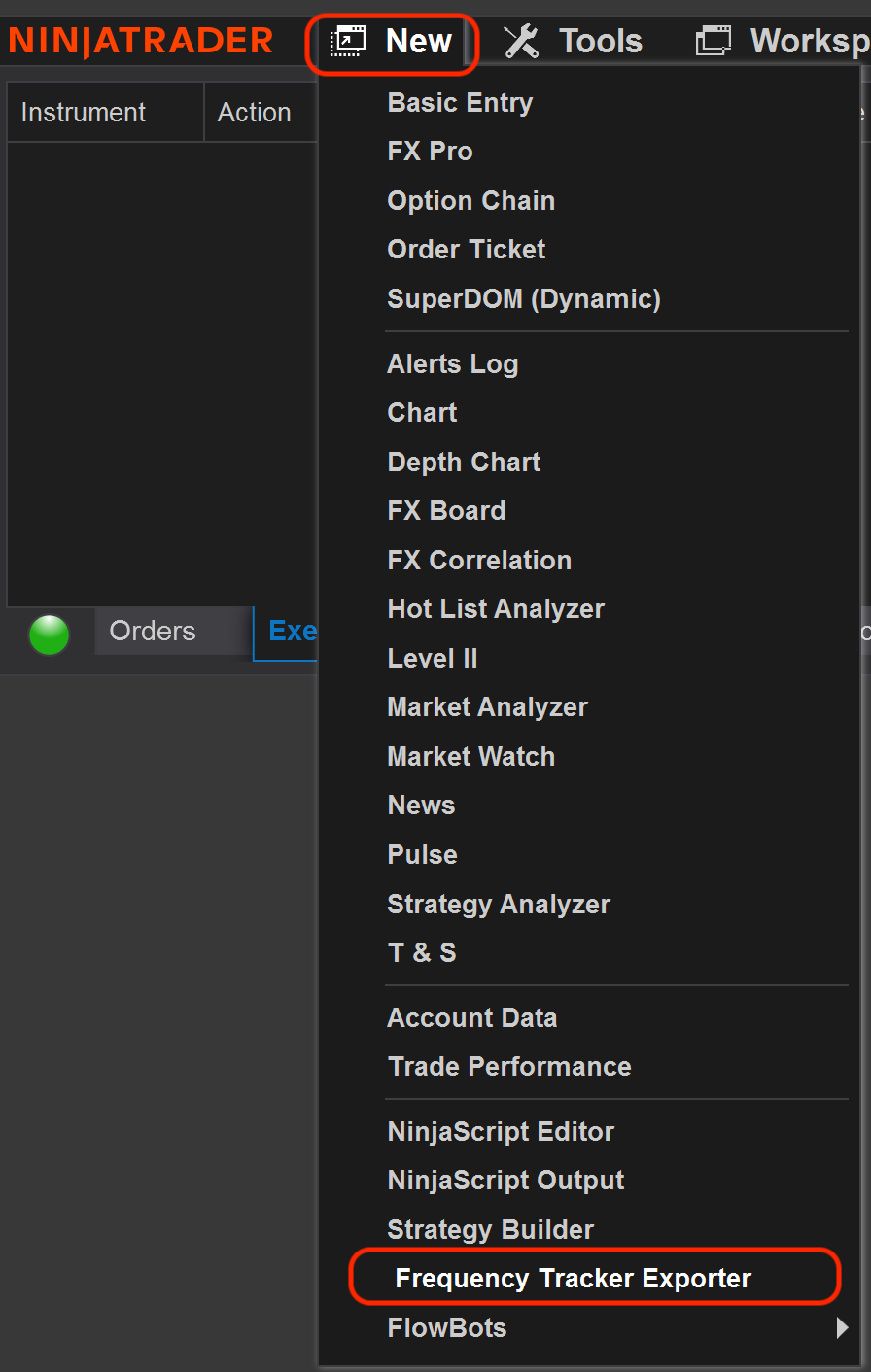
- Open the addon's control panel in NinjaTrader (Control Center → New → Frequency Tracker Exporter).
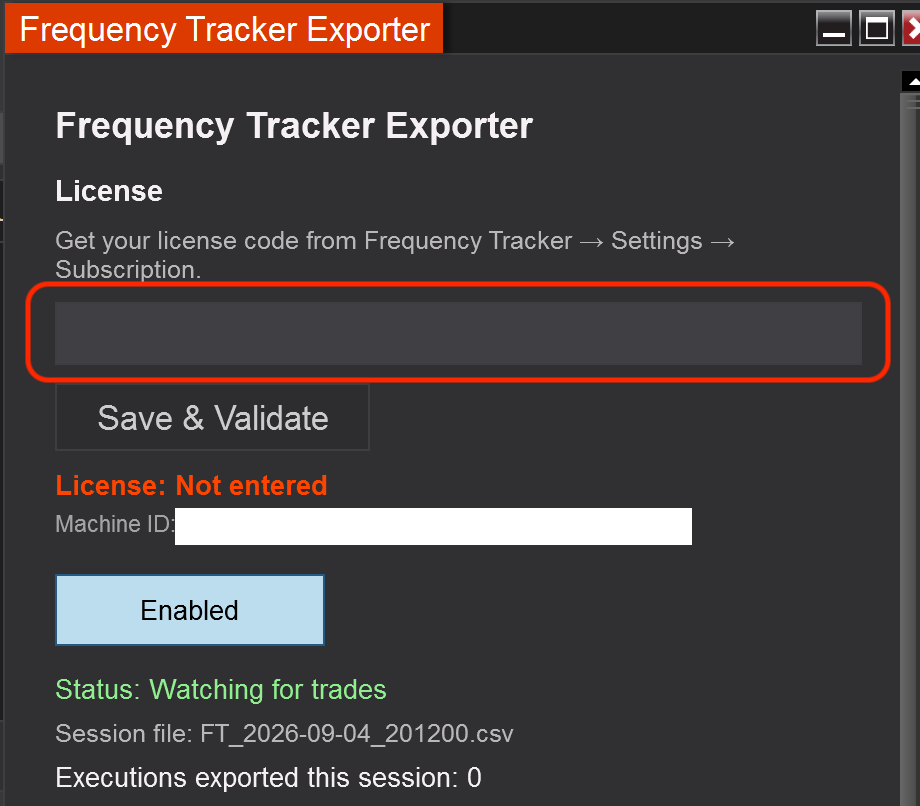
- Paste your code into the license field.
- Click Save & Validate.
- You should see the status change to "License: Valid" within a few seconds.
One computer per license
Each license code can only be actively used on one computer at a time — the first computer you enter it on becomes the one it's tied to. If you try to use the same code on a second computer, it won't validate there while it's still bound to the first.
Getting a new computer
If you get a new computer, you don't need to contact support. In the app, go to Settings → Subscription → Addon License and click "New Computer? Reset License." This immediately invalidates your old code and gives you a new one — enter the new code into the addon on your new computer the same way as above.
What happens if your subscription lapses
If your subscription ends, the addon will stop exporting new trades the next time it's able to check your license status online. Your existing trade history in Frequency Tracker isn't affected either way — this only controls whether new trades can be automatically imported.
Troubleshooting
- "Invalid: code not recognized" — double check you copied the whole code correctly, with no extra spaces.
- "Invalid: already used on another computer" — this code is currently bound to a different machine. Use the reset option above if this is intentional (e.g. you got a new computer).
- "Invalid: subscription not active" — your subscription may have lapsed or been cancelled. Check Settings → Subscription for your current status.
- "Could not verify (offline?)" — this just means the addon couldn't reach our servers to check right now (e.g. no internet connection). Exporting will continue normally in the meantime.
Where to go next